Articles & ressources
Immersive storytelling gets its own score with the ‘Narrative Score’
I started my career as a musician. When I created the narrative score visualizer, I wasn’t simply looking for another way to display a script. I was thinking of an orchestral score.
In a score, time moves from left to right. Vertically, you read the instruments and notes meeting measure by measure. It is from their interaction that chords, harmony, and sometimes tension emerge.
I wanted to give storytelling this kind of view.
Time on one axis, staging on the other
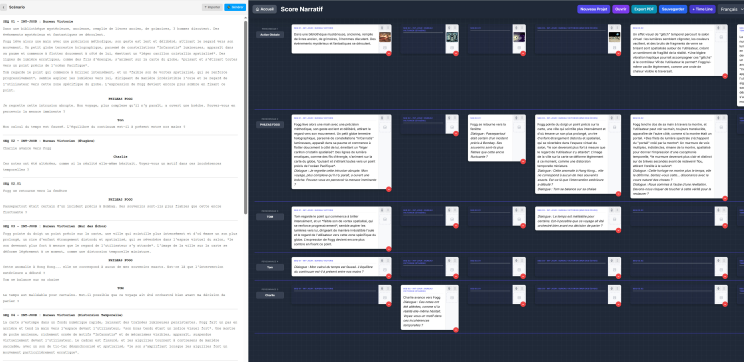
In the narrative score, linked to the Script 360-AI application, the first line gives the overall progression of the story. The following lines correspond to the characters. Each moves horizontally through time, sequence by sequence.
Vertical reading compares what the characters are doing with what they are saying. What does an action convey while another character is speaking? Do two lines of dialogue answer each other almost simultaneously, or in a tight back-and-forth? What is happening at the same time in different areas of space?
This is where the harmony of the staging is composed. The visualizer does not evaluate the harmony for you; it allows you to control and decipher it.
Composing with all space
In a linear narrative, you generally follow one action after another. In VR or 360° video, the audience can look straight ahead while an event takes place behind them. Under a dome, an action can appear to the right, left, behind the viewer, or on the ceiling. In augmented reality, the story can unfold around the person and their environment.
The score helps compare these events over time. What is a character saying while another acts? Does the action taking place outside the main field of view deserve to be discovered at the same time, just before, or right after? The script page or branching diagram offers another perspective. The score makes visible the simultaneous relationships between characters and actions.
Move, listen, recompose
The visualizer is not a frozen image to gaze at while wondering what to do with it. You can write directly inside the blocks, move them, split them, and add images as thumbnails. When a character does not take part in a sequence or portion of a sequence, the corresponding block remains transparent: their absence is also readable in the composition of the narrative score visualizer. In other words, silence has its place on the score, and you can immediately see whether this absence is intentional or if the character simply missed several rehearsals.
Blocks can be filled by voice using the microphone icon. You can also import a script and click “Generate”: in about ten seconds, the text is distributed across several tracks organized by character names. This initial setup saves time, but it doesn’t eliminate the need to review the score: a character might still need an earlier entrance, a longer silence, or a line delivered at just the right moment.
After that, you retain full control over the composition. You can add or delete blocks, remove a timeline, rename characters, and add other timelines. The controls are designed to build the view that suits the project, rather than imposing a single way of organizing the narrative.
Project controls allow you to create a new project, save your work, reopen an existing setup, and export the timeline to PDF. You can also select the interface language. The PDF export is handy for sharing a reading with the team, or for annotating the score without having to gather everyone behind your screen.
Finally, the workspace is vast and can be panned with a right click of the mouse; the scroll wheel lets you zoom in and out. This allows you to take in the entire narrative, then zoom back into a sequence or a tight exchange. The workbench has no edges forcing you to play your final act in the middle of your desktop: you navigate the timeline at the project’s own rhythm.
A different way to hear the script
The narrative score visualizer replaces neither the script nor the branching diagram. It offers a complementary view, particularly valuable when multiple actions, voices, and directions coexist within an immersive experience.
I designed it as a musician, so that the author can read the flow of time, hear the relationships between characters, and orchestrate space before the audience experiences the immersive work.
For now, the tool is separate from Script360. Very soon, it will join the main application in a dedicated tab.